


Drone Remote Controller
3.6518.00 Reviews
App Specs
- Version
- 7.0.0
- Updated On
- License
- Free
- Downloads
- 100,000+
- Developer
- Boss Inc
- Categories
- Libraries & Demo
- Platform
- Android
Screenshots
 Analysis by AppCompare
Using a phone as a drone controller sounds convenient, but the experience depends on more than having a screen in your hand. The phone, drone, and connection all need to work together, and that matters most when the aircraft is already in the air. I’d treat Drone Remote Controller as something to evaluate against the exact drone you own, rather than assuming a smartphone can replace every dedicated remote.
Check the connection before you plan a flight
A key question is not simply whether a phone can control a drone, but how that particular drone communicates with this app. The store summary describes using a phone as a drone controller, yet compatibility and connection methods can vary between aircraft. Before relying on it outdoors, check the instructions for your drone and confirm that its control system matches the app’s setup. A remote that pairs with one model may not work with another, even if both are small consumer drones.
This is especially important if you are considering the app as a backup. I would test the complete setup at home, with the drone grounded, rather than discovering a mismatch at a park or open field. Make sure the app opens, the intended connection can be established, and the controls respond as expected before deciding to fly. That simple check turns an uncertain replacement into a more informed choice.
Where a phone-based controller fits
A phone can be appealing when you want to travel light or keep the number of separate devices down. It may also suit someone who flies casually and already carries a phone for framing shots or checking a map. But the trade-off is that your controller and phone become the same piece of equipment: incoming calls, low battery, a dim screen, or an awkward grip can all affect the flying session.
Think about the place and purpose of the flight, too. In a calm, familiar area, a phone-based setup may be practical for a short test or a relaxed hover. For a longer outing, tricky surroundings, or a flight where precise control matters, a dedicated controller is usually the safer and more comfortable option. I would not choose a phone-only approach simply because it seems simpler; the right choice depends on how predictable the connection and controls are with your specific drone.
A small preflight routine makes a difference
Before leaving home, charge the phone and drone, close anything on the phone that could interrupt the session, and check that the screen is bright enough to read outdoors. At the launch site, make a brief ground check before takeoff: confirm the connection, identify the controls, and make sure you can bring the drone down without fumbling through menus. These steps are useful even when the app itself is straightforward, because a phone is also handling the ordinary distractions of daily use.
If the connection becomes unreliable, avoid treating repeated taps or hurried control inputs as a fix. Keep the flight conservative, follow the drone maker’s guidance for loss of control, and land as soon as it is safe to do so. I’d also avoid testing a newly configured setup over people, traffic, or places where a mistake could cause harm. A convenient control method is only useful when it leaves you enough confidence to fly responsibly.
Worth Reading Before You Choose

EA SPORTS FC Mobile 26 Is a Bigger Football Game, but It Takes Time

Flipboard Shows What News Apps Must Do Beyond the Feed

Switching to Android Auto Means Rethinking Your Driving Routine

Google Calendar Makes a Crowded Week Easier to Manage

Ludo King Makes the Most of the Minutes Between Plans

Baby Panda World Brings Quick Play to Modern Phones, but Its Game Library Feels Busy
Getting Started with Drone Remote Controller
First things first, setting up the Drone Remote Controller was a breeze. After a quick download from the app store—yup, it’s available on both Android and iOS—I was greeted with a clean and intuitive interface. No clutter, just the essentials. It even had a simple tutorial to guide me through the initial setup, which was super handy.
The app supports a wide range of drone models, which is quite impressive. I could easily connect my drone via Bluetooth and was up and running in no time. The pairing process was straightforward, and the app provides clear instructions to ensure everything goes smoothly.
Features That Make It Fly High
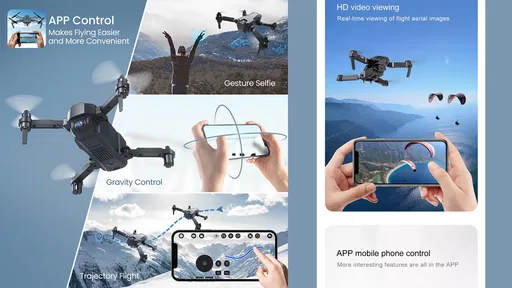
One of the standout features of the app is its customization options. You can tweak the control sensitivity and even set up custom flight paths. This is perfect if you’re like me and enjoy experimenting with different flying styles.
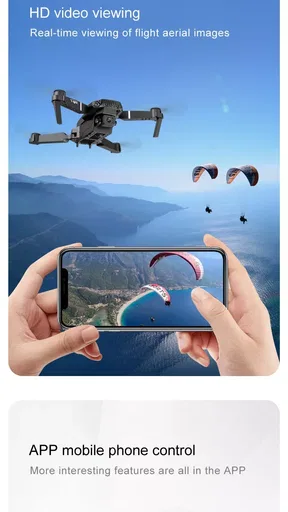
The real-time video streaming feature is another gem. It allows you to view live footage from your drone’s camera right on your phone. The video quality was surprisingly crisp, and there was minimal lag, which is crucial when you’re trying to capture those perfect aerial shots.
For those who love to explore, the map integration is a game-changer. It displays your drone’s location and even tracks its flight path. This feature added an extra layer of security and peace of mind, knowing I could easily retrieve my drone if it decided to go rogue.
Flying Experience
Flying with the app was quite the experience. The controls are responsive, and I felt like I had full command over my drone. The app offers both joystick and tilt modes, allowing you to choose your preferred control style. Personally, I enjoyed the joystick mode, as it felt more familiar and gave me precise control over my drone’s movements.
One thing I appreciated was the altitude hold function. It keeps the drone stable at a set height, which is perfect for capturing steady shots or just hovering around to take in the views.
What Could Be Better?
While the app is packed with features, there are a few areas that could use some polishing. The battery indicator, for one, wasn’t always accurate. It showed my drone had more juice than it actually did, which led to a couple of unexpected landings. A more reliable battery status would definitely enhance the user experience.
Another hiccup was the occasional connectivity drop. Though it didn’t happen often, losing connection mid-flight can be a bit nerve-wracking, especially when your drone is soaring high in the sky. A more stable connection would be a welcome improvement.
How I’d judge the practical trade-offs
Those connection and battery issues are the details I’d keep in mind when deciding whether this setup suits a particular outing. A short flight close to the launch point is a sensible way to learn how the controls behave. I would not make a first test a distant flight or a complicated attempt to capture footage: the more the drone depends on a steady link, the more important it is to know how the app behaves before adding distance or pressure.
There is also a useful distinction between controlling a drone and managing the whole flight. A live view and a flight path can help you understand what is happening, but neither replaces keeping the aircraft in sight or paying attention to its battery. I’d use the map as an aid rather than a recovery guarantee, and I’d treat the battery display cautiously given the inconsistency I encountered. Building in a comfortable margin to land is wiser than relying on a phone indicator to tell you exactly how much flight time remains.
Who should try it—and who should choose differently
This app is most appealing to a drone owner who wants to experiment with phone control, prefers having controls and camera view on one device, and is willing to verify compatibility before flying. The joystick and tilt options offer different ways to handle the aircraft, while sensitivity adjustments can help make the controls feel more comfortable. If you are new to flying, the tutorial may make the initial setup less intimidating, but it does not remove the need to learn your drone’s own safety procedures.
I’d be more cautious if you depend on predictable control for every flight, often fly in demanding conditions, or cannot afford a connection interruption. In those situations, the manufacturer’s dedicated controller—or another controller specifically designed for the aircraft—may be a better fit. A phone also competes with ordinary tasks: a call, a notification, or a battery running low can become a distraction. Someone who wants a dedicated, tactile control device may find a phone less comfortable, even if the app’s screen-based controls work well in a test.
A realistic outing, from setup to landing
Imagine taking the drone to a familiar open space for a quick view of a landscape. I’d first check the model and pairing at home, then arrive with both devices charged and choose a clear launch area. Once connected, I’d start close by, use the joystick mode if that feels more precise, and make a few gentle movements before attempting any filming. If the live image or controls become inconsistent, I’d pause the shot and bring the drone back rather than trying to solve the problem while it is far away.
For footage, I’d use altitude hold only when the surroundings and flight conditions make hovering appropriate, and I’d keep watching the aircraft instead of staring continuously at the phone. After landing, I’d review whether the connection remained stable and whether the battery indication matched the flight I experienced. That makes each outing a practical compatibility test, not just a chance to try features. It also helps separate an app issue from a drone, phone, or environmental issue without assuming the map or video feed will always be available.
How it compares with the usual alternatives
Compared with a dedicated physical remote, a phone controller can mean fewer devices to carry and an interface that combines flight controls with a screen. The dedicated remote has the advantage of being made for that role, with physical controls that are easier to locate by touch and without ordinary phone interruptions. Which is preferable depends on your habits: a casual flyer may value convenience, while someone who prioritizes consistent handling may prefer the purpose-built option.
Compared with a drone maker’s own companion app, a separate controller app is only compelling if it works reliably with the aircraft and offers a control experience you actually prefer. Compatibility should come before extra options. I would not switch from an established setup just to gain a different interface unless the alternative has been tested on the ground and in a cautious flight. For someone who does not yet own a drone, it makes more sense to choose the aircraft and its supported control method first, then decide whether this app is a suitable addition.
Cost, audience, and what to expect
Drone Remote Controller is a free app in the Libraries & Demo category, developed by kahlochSto. It is rated for Everyone, so its audience is broad, though safe drone use still depends on the pilot and the aircraft. The app was released on January 8, 2023, and its current version is 7.0.0. Those details give a useful sense of the product, but they do not replace checking whether the app works with your own drone and phone.
Its average rating is 3.5 from around 4.8 thousand ratings, with 519 written reviews and over 100 thousand installs. I read that as a reason to approach it with realistic expectations: there is enough interest to make it worth considering, but the rating does not guarantee a smooth experience on every setup. Since it is free, trying it may be low-cost in money, but a failed connection during a flight can still cost time or put a drone at risk. Test first, and do not let the absence of a purchase price stand in for a safety check.
The Final Verdict
All in all, the Drone Remote Controller app is a fantastic tool for any drone enthusiast looking to ditch the traditional controller. Its ease of use, coupled with a plethora of features, makes it a worthy companion for your aerial adventures. Despite a few minor setbacks, it’s a solid alternative that adds a layer of convenience and fun to the flying experience.
If you’re ready to take your drone flights to the next level, give the Drone Remote Controller app a shot. Just make sure to keep an eye on that battery and enjoy the freedom of flying with just your smartphone in hand. Happy flying, folks!
My connectivity verdict
My overall view is that this is best approached as a phone-based option to test carefully, not as a universal replacement for a drone’s usual remote. The interface and control choices sound appealing for casual use, but the reported connection drops and battery-indicator inconsistency are meaningful limits when the aircraft is airborne. If your drone pairs properly and a cautious ground check gives you confidence, the app may suit a relaxed outing. If you need dependable control above all else, stick with the controller designed for your aircraft.
Pros
- Easy to use interface for beginners.
- Compatible with multiple drone models.
- Real-time video streaming feature.
- Customizable control settings.
- Strong community support and updates.
Cons
- Limited functionality on older devices.
- High battery consumption during use.
- Occasional connectivity issues reported.
- Requires frequent app updates.
- In-app purchases can be expensive.
FAQs for Drone Remote Controller
What features does the Drone Remote Controller app offer?
The Drone Remote Controller app provides a comprehensive suite of features including real-time video streaming, GPS tracking, waypoint navigation, and customizable flight paths. It also offers various control modes, such as joystick and tilt control, to accommodate different user preferences. Additionally, the app includes a built-in media gallery for easy access to recorded footage.
Is the Drone Remote Controller app compatible with all drone models?
The app supports a wide range of popular drone models, but compatibility may vary depending on the specific make and firmware version. It's recommended to check the app's compatibility list on the official website or app store listing to ensure your drone model is supported before downloading.
How user-friendly is the Drone Remote Controller app for beginners?
The app is designed with an intuitive interface suitable for both beginners and experienced pilots. It provides guided tutorials and on-screen prompts to help new users get started. Advanced settings are also available for seasoned users looking to customize their flying experience. Overall, the app aims to cater to a broad user base.
What are the system requirements to run the Drone Remote Controller app?
To ensure optimal performance, the app requires a device with at least iOS 12.0 or Android 8.0, along with a minimum of 2GB RAM. A stable internet connection is necessary for features like real-time streaming and GPS tracking. It's advisable to check your device's specifications to confirm compatibility before installation.
Are there any in-app purchases or subscriptions required?
The Drone Remote Controller app is free to download, but it offers optional in-app purchases that enhance functionality. These may include advanced mapping features, additional flight modes, or premium customer support. Users can choose to purchase these features as needed, without a mandatory subscription requirement.


